Put it into words. Create what you imagine
Generate video with Seedance 2.0 and 2.5, or images with Seedream, from text or an image


Highlights
Start from what you want to make
Choose what you want to make.
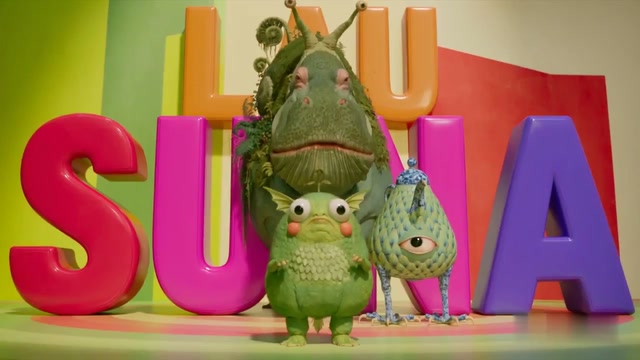 Example clipStory or script → Script → Episode split → Materials → Shots → Outputs → Anime episodesAI Anime DramaStory + referencesLive-action episodesStory + references → Script → Episode split → Materials → Shots → Outputs → Live-action episodesAI Live-Action DramaNarration scriptNarrated videoNarration script → Script → Episode split → Materials → Shots → Outputs → Narrated videoAI Narration VideoProduct + selling pointsProduct advertising shotsProduct + selling points → Shape the prompt → generate → review → Product advertising shotsProduct spotCharacters + dialogueShort drama shotsCharacters + dialogue → Shape the prompt → generate → review → Short drama shotsShort dramaCharacter + rhythmCharacter music-video shotsCharacter + rhythm → Shape the prompt → generate → review → Character music-video shotsFan MVAvatar + spoken lineAvatar short-video shotsAvatar + spoken line → Shape the prompt → generate → review → Avatar short-video shotsVTuber short
STUDIOTOOLS
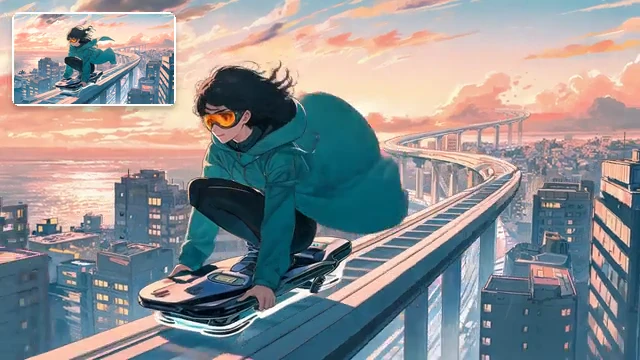 Image to video
 Add more
 Restyle
 Generate imagesProjectsDiscoverShowcase
 Seedance 2.5
 Seedance 2.0AI Anime Drama
 Performance RemakeSource videoChange one thingChange one thingVideosJoin into oneJoin into onePromptShape itShape itCamera MovementVideoCamera MovementLensVideoLensStory + referencesLive-action episodesAI Live-Action DramaNarration scriptNarrated videoAI Narration VideoPromptVideoCanvasPromptShape itShape it (image)In preparationActor expression enhancerIn preparationPortrait enhancementIn preparationHand-drawn whiteboardIn preparationAI storyboard generatorIn preparationAI relightingIn preparationColor palette extractorIn preparationFilm analysis and recreationIn preparationVideo upscaler
Showcase
Product Cinema
Campaign Energy
Work, Reimagined
Close to Heart
Micro Stories
High Stakes
Animated Worlds
Culture in Motion
Beyond Reality
VIDEO · IMAGE · DRAMA
Choose the first frame, add more, join several clips into one
Video runs on Seedance 2.0 and 2.5, images on Seedream 5.0. Video and image generation shows the credits it will use before it runs.
A service that makes video and images from text or images. Video runs on Seedance 2.0 and 2.5, up to 30 seconds on 2.5; images on Seedream 5.0, up to four per turn. Videos can be extended, changed and joined, and there is AI drama production too.
Showcase
Product Cinema
E-commerce and consumer products
Campaign Energy
Advertising and brand films
Work, Reimagined
B2B, industrial and services
Close to Heart
Romance, longing and connection
Micro Stories
Contemporary drama, comedy and everyday tension
Canvas
Connect images, video, audio and prompts to generate. Earlier results stay when you branch.
AI Drama
Organize characters and shots from your story, then produce the video.
Video generation
Attach references and specify camera, light and motion. Seedance 2.5 supports dialogue-driven lip movement, up to 30 seconds.
Image generation
Specify composition, light and texture, then choose the image to use.
Performance Remake
Use Skill, animation, CG or AI videos. Live-action video of real people is not supported yet.
Canvas Trace each take back along its line
Connect images, video, audio and prompts to generate. Earlier results stay when you branch.
Open CanvasAI Drama From synopsis to storyboard
Organize characters and shots from your story, then produce the video.
Open AI DramaVideo generation From text or from an image
Attach references and specify camera, light and motion. Seedance 2.5 supports dialogue-driven lip movement, up to 30 seconds.
Open Video generationImage generation Up to four a turn, and a first frame for video
Specify composition, light and texture, then choose the image to use.
Open Image generationPerformance Remake Reference the original motion, change characters, clothing and setting
Use Skill, animation, CG or AI videos. Live-action video of real people is not supported yet.
Open Performance RemakeBUSINESS
For companies
Commercial use and rights: what to check before using it for work. Summarised from the Terms.
Commercial use
No clause prohibits use in advertising or promotion. Before publishing, check that it infringes no one else’s rights (Article 8). Hiding that something was made with AI in order to deceive people is prohibited (Article 10).
Rights and likeness
Between us and you, any rights that arise in the video and images you make belong to you. We do not guarantee that rights arise. Using a real person needs that person’s consent, or a legal guardian’s for a minor (Articles 8 and 9).
Start from what it’s for
Short drama
A three-shot prompt: establish the scene, exchange dialogue, show the reaction.
Start with thisProduct spot
A two- or three-shot product prompt: use, material close-up, still display. No on-screen text.
Start with thisAds and brand films
When the mood matters more than the product. Describe the scene and it is made into one video as written.
Start with thisImages for posts and announcements
Make up to four a turn and pick the one for your post or announcement.
Start with thisHow it differs from other ways
Add more
Change one thing
Join into one
Image to video
Restyle
Synopsis to storyboard
Video with sound, and images, in one workspace
Make video, then fix it
Make 4–15 second clips (up to 30 on Seedance 2.5) from text or an image. Fix a finished clip by extending it, changing one part or joining two or three clips.
Make images
Up to four per turn, from text or reference images. Seedream 5.0 goes up to 4K, 5.0 Pro up to 2K. An image you make can be a video’s first frame.
Video with sound
Turn sound on or off for each generation.
What it does, in numbers
The longest Seedance 2.5 clip. It can come with sound that follows the picture.
Images from one prompt. Pick the one you use.
From text, image to video, add more, change one thing, join into one, restyle: the video operations.
Make your first one
Questions
How does pricing work?
Generating uses credits, which you buy in advance. Each credit product’s price and credit count are on the pricing page.
See pricingHow many credits does one generation use?
It depends on the model, the length, the resolution and more. The number is shown before you generate. If a generation does not finish, the credits held for it are not spent and come back (Terms, Article 5).
Rights, and real people
Between us and you, rights in the output belong to the member who made it (Terms, Article 8). We do not guarantee that rights arise, or that it infringes no one else’s rights. A real person may appear only with their consent (a legal guardian’s for a minor; Article 9).
Can I use it for work or advertising?
The Terms do not prohibit commercial use. Before publishing, check that the output infringes no one’s rights. Hiding that it was AI-generated in order to deceive people is prohibited (Article 10).
Do credits expire?
No. If you close your account, unused credits lapse and, except where the law requires otherwise, are not refunded (Terms, Articles 5 and 15).
Can I try it without signing in?
While the trial is open, you can make video without signing in, with Seedance 2.0, 2.0 Fast and 2.0 Mini. Trial videos carry a moving watermark, and their sound stops halfway. Seedance 2.5 and buying credits need you to sign in. There are periods when the trial is not open, and days when that day’s trial allowance has run out.
Which models can I use?
Four for video: Seedance 2.5 makes 4–30 seconds up to 1080p, 2.0 makes 4–15 seconds up to 4K, and 2.0 Fast and 2.0 Mini make 4–15 seconds up to 720p. Two for images: Seedream 5.0 Pro (up to 2K) and Seedream 5.0 (up to 4K). The models on offer can change (Terms, Article 13).
Can I continue a video I made?
Yes. Add more puts new footage after the video or before it. You can also change one part, or join two or three clips into one. Source videos can total up to 30 seconds with Seedance 2.5 and up to 15 seconds with the 2.0 models.
Which languages does it support?
The interface supports Japanese, English, Simplified Chinese and Korean. Switch in the language menu or workspace settings. Shape it follows the language of your input.
How are my inputs and work handled?
To generate, your inputs are sent to outside AI providers (Terms, Article 8). Your inputs and outputs are not used to train AI models without your consent (Privacy Policy, section 3). Your work goes into the public gallery or advertising only with your consent (Terms, Article 8). You can delete images and videos you uploaded, and videos and images you generated, from Assets. A file that a project or similar item uses can be deleted once you remove it there, where that is possible. A generation that used or made a deleted file stays in your generation history with its prompt and other records. A deleted file can no longer be used in the service and is kept as an archive. To have deleted what you cannot delete yourself, such as a file in a published work, or to have the archive erased, ask us through the contact in the Privacy Policy, and we handle the request as the law requires (Privacy Policy, sections 9 and 10). To close your account, write to the contact in Privacy Policy section 11 (Terms, Article 15).